Building a Full Stack DevJokes App with TanStack Start
This tutorial will guide you through building a complete full-stack application using TanStack Start. You'll create a DevJokes app where users can view and add developer-themed jokes, demonstrating key concepts of TanStack Start including server functions, file-based data storage, and Solid components.
Here's a demo of the app in action:
The complete code for this tutorial is available on GitHub.
What You'll Learn
- Setting up a TanStack Start project
- Implementing server functions
- Reading and writing data to files
- Building a complete UI with Solid components
- Using TanStack Router for data fetching and navigation
Prerequisites
- Basic knowledge of Solid and TypeScript.
- Node.js and pnpm installed on your machine
Nice to know
Setting up a TanStack Start Project
First, let's create a new TanStack Start project:
pnpx @tanstack/cli@latest create --framework solid devjokes
cd devjokes
When this script runs, it will ask you a few setup questions. You can either pick choices that work for you or just press enter to accept the defaults.
Optionally, you can pass in a --add-on flag to get options such as Shadcn, Clerk, Convex, TanStack Query, etc.
Once setup is complete, install dependencies and start the development server:
pnpm i
pnpm dev
For this project, we'll need the uuid package:
# Install uuid for generating unique IDs
pnpm add uuid
Understanding the project structure
At this point, the project structure should look like this -
/devjokes
├── src/
│   ├── routes/
│   │   ├── demo/                         # Demo routes
│   │   ├── __root.tsx                    # Root layout
│   │   └── index.tsx                     # Home page
│   ├── components/                       # Solid components
│   ├── data/                             # Data files
│   ├── router.tsx                        # Router configuration
│   ├── routeTree.gen.ts                  # Generated route tree
│   └── styles.css                        # Global styles
├── public/                               # Static assets
├── vite.config.ts or rsbuild.config.ts   # TanStack Start configuration
├── package.json                          # Project dependencies
└── tsconfig.json                         # TypeScript configuration
This structure might seem overwhelming at first, but here are the key files you need to focus on:
- src/router.tsx - Sets up routing for your application
- src/routes/__root.tsx - The root layout component where you can add global styles and components
- src/routes/index.tsx - Your home page
Once your project is set up, you can access your app at localhost:3000. You should see the default TanStack Start welcome page.
At this point, your app will look like this:

Step 1: Reading Data From a File
Let's start by creating a file-based storage system for our jokes.
Step 1.1: Create a JSON File with Jokes
Let's set up a list of jokes that we can use to render on the page. Create a jokes.json file within src/data:
touch src/data/jokes.jsonNow, let's add some sample jokes to this file:
[
  {
    "id": "1",
    "question": "Why don't keyboards sleep?",
    "answer": "Because they have two shifts"
  },
  {
    "id": "2",
    "question": "Are you a RESTful API?",
    "answer": "Because you GET my attention, PUT some love, POST the cutest smile, and DELETE my bad day"
  },
  {
    "id": "3",
    "question": "I used to know a joke about Java",
    "answer": "But I ran out of memory."
  },
  {
    "id": "4",
    "question": "Why do Front-End Developers eat lunch alone?",
    "answer": "Because, they don't know how to join tables."
  },
  {
    "id": "5",
    "question": "I am declaring a war.",
    "answer": "var war;"
  }
]
Step 1.2: Create Types for Our Data
Let's create a file to define our data types. Create a new file at src/types/index.ts:
// src/types/index.ts
export interface Joke {
  id: string
  question: string
  answer: string
}

export type JokesData = Joke[]
Step 1.3: Create Server Functions to Read the File
Let's create a new file src/serverActions/jokesActions.ts to create a server function to perform a read-write operation. We will be creating a server function using createServerFn.
// src/serverActions/jokesActions.ts
import { createServerFn } from '@tanstack/solid-start'
import * as fs from 'node:fs'
import type { JokesData } from '../types'

const JOKES_FILE = 'src/data/jokes.json'

export const getJokes = createServerFn({ method: 'GET' }).handler(async () => {
  const jokes = await fs.promises.readFile(JOKES_FILE, 'utf-8')
  return JSON.parse(jokes) as JokesData
})
In this code, we are using createServerFn to create a server function that reads the jokes from the JSON file. The handler function is where we are using the fs module to read the file.
Step 1.4: Consume Server Function on the Client Side
Now to consume this server function, we can simply call it in our code using TanStack Router which already comes with TanStack Start!
Now let's create a new component JokesList to render the jokes on the page with a little Tailwind styling sprinkle.
// src/components/JokesList.tsx
import { Joke } from '../types'

interface JokesListProps {
  jokes: Joke[]
}

export function JokesList({ jokes }: JokesListProps) {
  if (!jokes || jokes.length === 0) {
    return <p class="text-gray-500 italic">No jokes found. Add some!</p>
  }

  return (
    <div class="space-y-4">
      <h2 class="text-xl font-semibold">Jokes Collection</h2>
      {jokes.map((joke) => (
        <div
          key={joke.id}
          class="bg-white p-4 rounded-lg shadow-md border border-gray-200"
        >
          <p class="font-bold text-lg mb-2">{joke.question}</p>
          <p class="text-gray-700">{joke.answer}</p>
        </div>
      ))}
    </div>
  )
}
Now let's call our server function inside index.tsx using TanStack Router which already comes with TanStack Start!
// src/routes/index.tsx
import { createFileRoute } from '@tanstack/solid-router'
import { getJokes } from './serverActions/jokesActions'
import { JokesList } from './JokesList'

export const Route = createFileRoute('/')({
  loader: async () => {
    // Load jokes data when the route is accessed
    return getJokes()
  },
  component: App,
})

const App = () => {
  const jokes = Route.useLoaderData() || []

  return (
    <div class="max-w-2xl mx-auto py-12 px-4 space-y-6">
      <h1 class="text-4xl font-bold text-center mb-10">DevJokes</h1>
      <JokesList jokes={jokes} />
    </div>
  )
}
When the page loads, jokes will have data from the jokes.json file already!
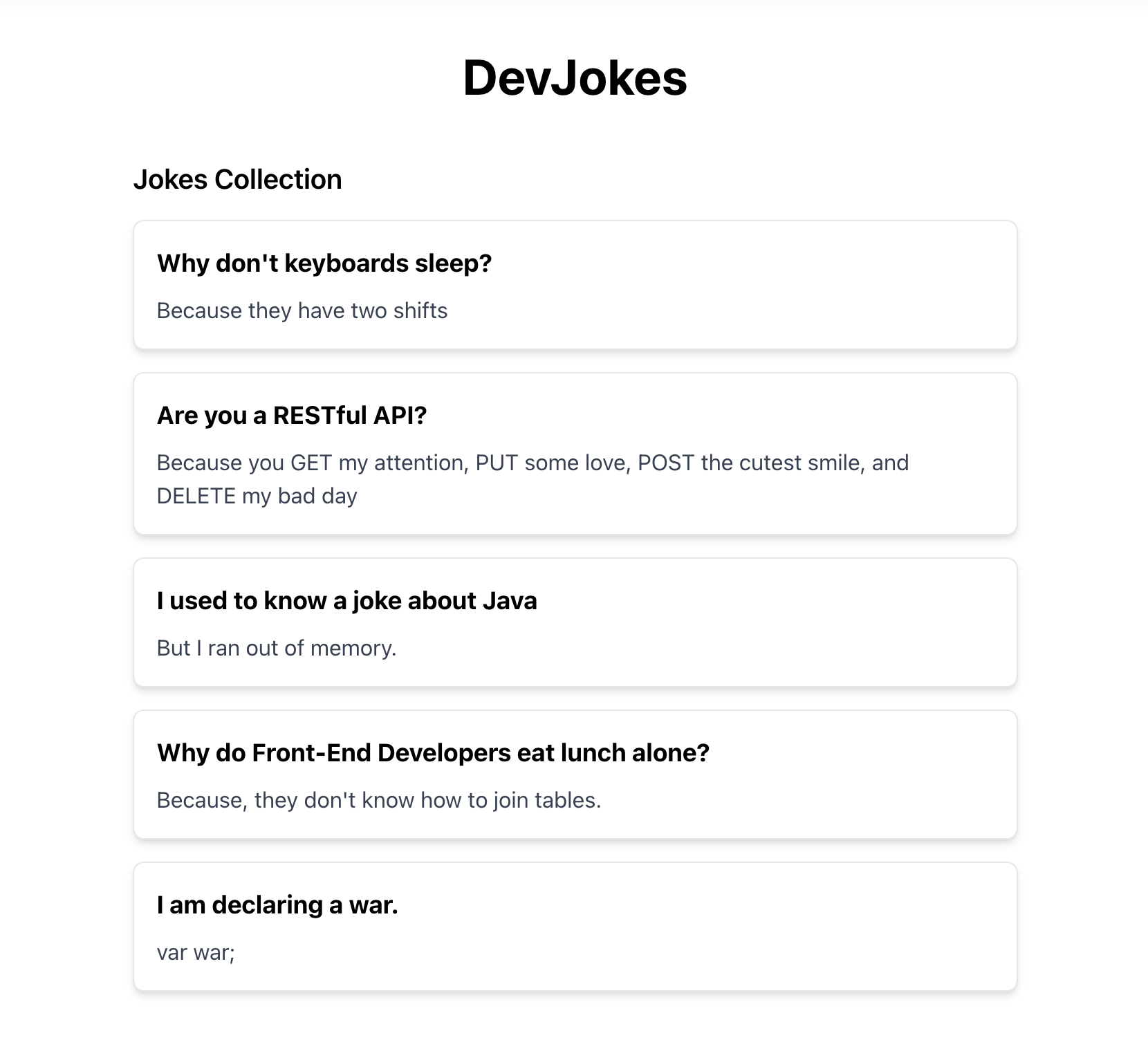
With a little Tailwind styling, the app should look like this:
Step 2: Writing Data to a File
So far, we have been able to read from the file successfully! We can use the same approach to write to the jokes.json file using createServerFunction.
Step 2.1: Create Server Function to Write to the File
It's time to modify the jokes.json file so that we can add new jokes to it. Let's create another server function but this time with a POST method to write to the same file.
// src/serverActions/jokesActions.ts
import { createServerFn } from '@tanstack/solid-start'
import * as fs from 'node:fs'
import { v4 as uuidv4 } from 'uuid' // Add this import
import type { Joke, JokesData } from '../types'

const JOKES_FILE = 'src/data/jokes.json'

export const getJokes = createServerFn({ method: 'GET' }).handler(async () => {
  const jokes = await fs.promises.readFile(JOKES_FILE, 'utf-8')
  return JSON.parse(jokes) as JokesData
})

// Add this new server function
export const addJoke = createServerFn({ method: 'POST' })
  .validator((data: { question: string; answer: string }) => {
    // Validate input data
    if (!data.question || !data.question.trim()) {
      throw new Error('Joke question is required')
    }
    if (!data.answer || !data.answer.trim()) {
      throw new Error('Joke answer is required')
    }
    return data
  })
  .handler(async ({ data }) => {
    try {
      // Read the existing jokes from the file
      const jokesData = await getJokes()

      // Create a new joke with a unique ID
      const newJoke: Joke = {
        id: uuidv4(),
        question: data.question,
        answer: data.answer,
      }

      // Add the new joke to the list
      const updatedJokes = [...jokesData, newJoke]

      // Write the updated jokes back to the file
      await fs.promises.writeFile(
        JOKES_FILE,
        JSON.stringify(updatedJokes, null, 2),
        'utf-8',
      )

      return newJoke
    } catch (error) {
      console.error('Failed to add joke:', error)
      throw new Error('Failed to add joke')
    }
  })
In this code:
- We are using createServerFn to create server functions that run on the server but can be called from the client. This server function is used to write data to the file.
- We are going to first use validator to validate the input data. This is a good practice to ensure that the data we are receiving is in the correct format.
- We are going to perform the actual write operation in the handler function.
- getJokes reads the jokes from our JSON file.
- addJoke validates the input data and adds a new joke to our file.
- We're using uuidv4() to generate unique IDs for our jokes.
Step 2.2: Adding a Form to Add Jokes to our JSON File
Now, let's modify our home page to display jokes and provide a form to add new ones. Let's create a new component called JokeForm.jsx and add the following form to it:
// src/components/JokeForm.tsx
import { createSignal } from 'solid'
import { useRouter } from '@tanstack/solid-router'
import { addJoke } from '../serverActions/jokesActions'

export function JokeForm() {
  const router = useRouter()
  const [question, setQuestion] = createSignal('')
  const [answer, setAnswer] = createSignal('')
  const [isSubmitting, setIsSubmitting] = createSignal(false)
  const [error, setError] = createSignal<string | null>(null)

  return (
    <form onSubmit={handleSubmit} class="mb-8">
      {error && (
        <div class="bg-red-100 text-red-700 p-2 rounded mb-4">{error}</div>
      )}

      <div class="flex flex-col sm:flex-row gap-4 mb-8">
        <input
          id="question"
          type="text"
          placeholder="Enter joke question"
          class="w-full p-2 border rounded focus:ring focus:ring-blue-300 flex-1"
          value={question()}
          onChange={(e) => setQuestion(e.target.value)}
          required
        />

        <input
          id="answer"
          type="text"
          placeholder="Enter joke answer"
          class="w-full p-2 border rounded focus:ring focus:ring-blue-300 flex-1 py-4"
          value={answer()}
          onChange={(e) => setAnswer(e.target.value)}
          required
        />

        <button
          type="submit"
          disabled={isSubmitting()}
          class="bg-blue-500 hover:bg-blue-600 text-white font-medium rounded disabled:opacity-50 px-4"
        >
          {isSubmitting() ? 'Adding...' : 'Add Joke'}
        </button>
      </div>
    </form>
  )
}
Step 2.3: Wire Up the Form to the Server Function
Now, let's wire the form up to our addJoke server function in the handleSubmit function. Calling a server action is simple! It's just a function call.
//JokeForm.tsx
import { createSignal } from 'solid'
import { useRouter } from '@tanstack/solid-router'
import { addJoke } from '../serverActions/jokesActions'

export function JokeForm() {
  const router = useRouter()
  const [question, setQuestion] = createSignal('')
  const [answer, setAnswer] = createSignal('')
  const [isSubmitting, setIsSubmitting] = createSignal(false)
  const [error, setError] = createSignal<string | null>(null)

  const handleSubmit = async () => {
    if (!question() || !answer() || isSubmitting()) return
    try {
      setIsSubmitting(true)
      await addJoke({
        data: { question(), answer() },
      })

      // Clear form
      setQuestion('')
      setAnswer('')

      // Refresh data
      router.invalidate()
    } catch (error) {
      console.error('Failed to add joke:', error)
      setError('Failed to add joke')
    } finally {
      setIsSubmitting(false)
    }
  }

  return (
    <form onSubmit={handleSubmit} class="mb-8">
      {error && (
        <div class="bg-red-100 text-red-700 p-2 rounded mb-4">{error}</div>
      )}
      <div class="flex flex-col sm:flex-row gap-4 mb-8">
        <input
          id="question"
          type="text"
          placeholder="Enter joke question"
          class="w-full p-2 border rounded focus:ring focus:ring-blue-300 flex-1"
          value={question()}
          onChange={(e) => setQuestion(e.target.value)}
          required
        />
        <input
          id="answer"
          type="text"
          placeholder="Enter joke answer"
          class="w-full p-2 border rounded focus:ring focus:ring-blue-300 flex-1 py-4"
          value={answer()}
          onChange={(e) => setAnswer(e.target.value)}
          required
        />
        <button
          type="submit"
          disabled={isSubmitting()}
          class="bg-blue-500 hover:bg-blue-600 text-white font-medium rounded disabled:opacity-50 px-4"
        >
          {isSubmitting() ? 'Adding...' : 'Add Joke'}
        </button>
      </div>
    </form>
  )
}
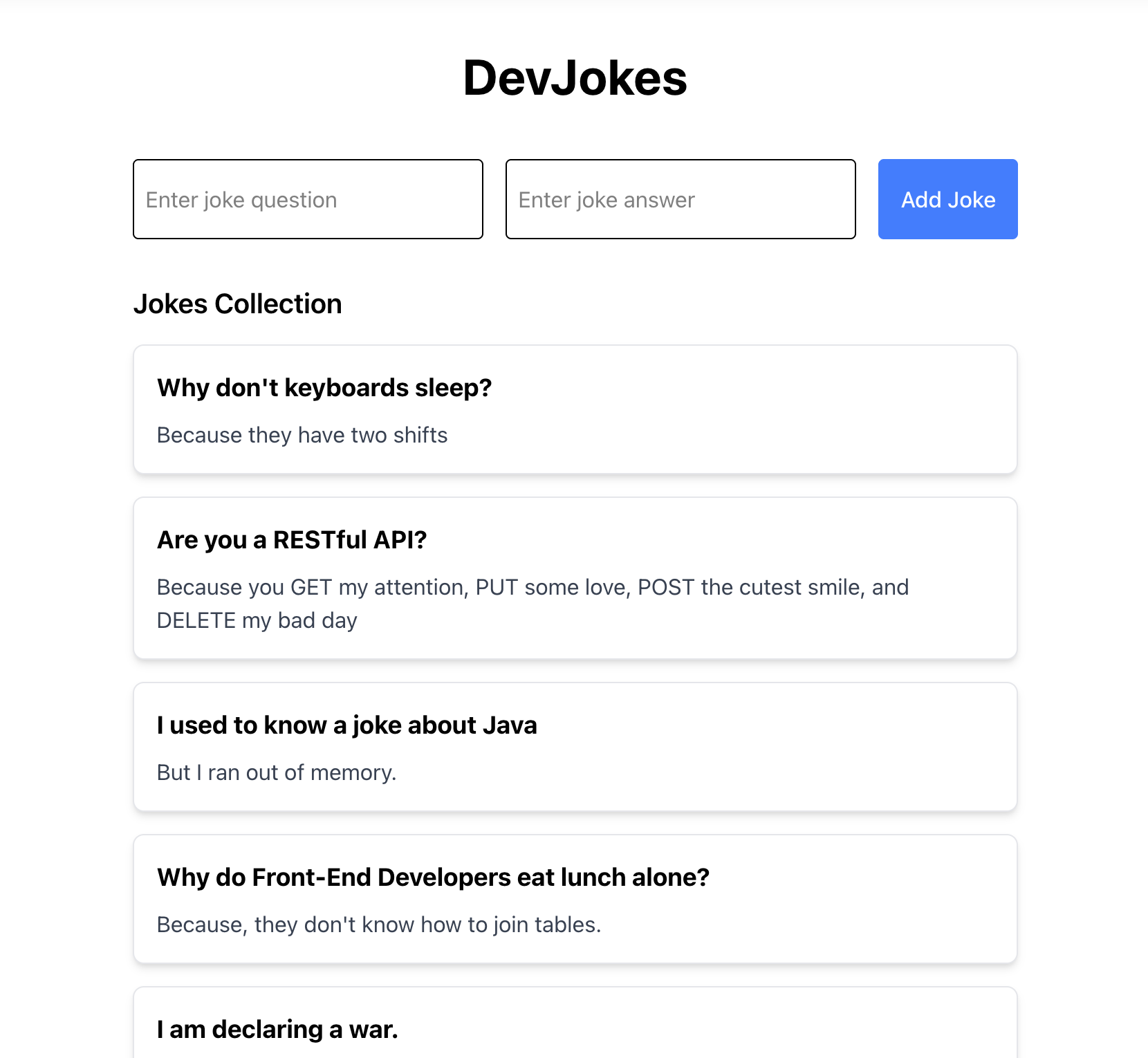
With this, our UI should look like this:
Understanding How It All Works Together
Let's break down how the different parts of our application work together:
Server Functions: These run on the server and handle data operations
- getJokes: Reads the jokes from our JSON file
- addJoke: Adds a new joke to our JSON file
TanStack Router: Handles routing and data loading
- The loader function fetches jokes data when the route is accessed
- useLoaderData makes this data available in our component
- router.invalidate() refreshes the data when we add a new joke
Solid Components: Build the UI of our application
- JokesList: Displays the list of jokes
- JokeForm: Provides a form for adding new jokes
File-Based Storage: Stores our jokes in a JSON file
- Reading and writing are handled by Node.js fs module
- Data is persisted between server restarts
How Data Flows Through the Application
Data Flow
sequenceDiagram
autonumber
actor User
participant UI as Browser (HomePage + Form)
participant Loader as Route Loader (loader)
participant Server
participant Store as jokes.json

%% Visiting the Home Page
User ->> UI: Visit /
UI ->> Loader: loader() calls getJokes()
Loader ->> Server: getJokes()
Server ->> Store: Read jokes.json
Store -->> Server: jokes data
Server -->> Loader: jokes[]
Loader -->> UI: useLoaderData() → jokes[]

%% Adding a New Joke
User ->> UI: Fill form and submit
UI ->> Server: handleSubmit → addJoke(newJoke)
Server ->> Store: Read jokes.json
Server ->> Store: Write updated jokes.json
Server -->> UI: addJoke() resolved
UI ->> Loader: router.invalidate() (re-run loader)
Loader ->> Server: getJokes()
Server ->> Store: Read jokes.json
Store -->> Server: updated jokes[]
Server -->> Loader: updated jokes[]
Loader -->> UI: useLoaderData() → updated jokes[]
When a user visits the home page:
- The loader function in the route calls getJokes() server function
- The server reads jokes.json and returns the jokes data
- This data is passed to the HomePage component through useLoaderData()
- The HomePage component passes the data to the JokesList component
When a user adds a new joke:
- They fill out the form and submit it
- The handleSubmit function calls the addJoke() server function
- The server reads the current jokes, adds the new joke, and writes the updated data back to jokes.json
- After the operation completes, we call router.invalidate() to refresh the data
- This triggers the loader again, fetching the updated jokes
- The UI updates to show the new joke in the list
Here's a demo of the app in action:
Common Issues and Debugging
Here are some common issues you might encounter when building your TanStack Start application and how to resolve them:
Server Functions Not Working
If your server functions aren't working as expected:
- Check that you're using the correct HTTP method (GET, POST, etc.)
- Ensure file paths are correct and accessible to the server
- Check the server console for error messages
- Make sure you're not using client-only APIs in server functions
Route Data Not Loading
If route data isn't loading properly:
- Verify that your loader function is properly implemented
- Check that you're using useLoaderData() correctly
- Look for errors in the browser console
- Make sure your server function is working correctly
Form Submission Issues
If form submissions aren't working:
- Check for validation errors in your server function
- Verify that form event prevention (e.preventDefault()) is working
- Make sure state updates are happening correctly
- Look for network errors in the browser's Developer Tools
File Reading/Writing Issues
When working with file-based storage:
- Ensure file paths are correct
- Check file permissions
- Make sure you're handling async operations properly with await
- Add proper error handling for file operations
Conclusion
Congratulations! You've built a full-stack DevJokes app using TanStack Start. In this tutorial, you've learned:
- How to set up a TanStack Start project
- How to implement server functions for data operations
- How to read and write data to files
- How to build Solid components for your UI
- How to use TanStack Router for routing and data fetching
This simple application demonstrates the power of TanStack Start for building full-stack applications with a minimal amount of code. You can extend this app by adding features like:
- Joke categories
- Ability to edit and delete jokes
- User authentication
- Voting for favorite jokes
The complete code for this tutorial is available on GitHub.
'%3e%3cpath%20d='M117.436%20207.036V154.604L118.529%20153.51H129.452L130.545%20154.604V207.036L129.452%20208.13H118.529L117.436%20207.036Z'%20fill='%2305BDBA'/%3e%3cpath%20d='M117.436%2053.5225V1.09339L118.529%200H129.452L130.545%201.09339V53.5225L129.452%2054.6159H118.529L117.436%2053.5225Z'%20fill='%2305BDBA'/%3e%3cpath%20d='M69.9539%20169.238H68.4094L60.6869%20161.512V159.967L78.7201%20141.938L86.8976%20141.942L87.9948%20143.031V151.209L69.9539%20169.238Z'%20fill='%2305BDBA'/%3e%3cpath%20d='M69.9462%2038.8917H68.4017L60.6792%2046.6181V48.1626L78.7124%2066.192L86.8899%2066.1882L87.9871%2065.0986V56.9212L69.9462%2038.8917Z'%20fill='%2305BDBA'/%3e%3cpath%20d='M1.09339%2097.5104H75.3711L76.4645%2098.6038V109.526L75.3711%20110.62H1.09339L0%20109.526V98.6038L1.09339%2097.5104Z'%20fill='%2305BDBA'/%3e%3cpath%20d='M440.999%2097.5104H510.91L512.004%2098.6038V109.526L510.91%20110.62H436.633L435.539%20109.526L439.905%2098.6038L440.999%2097.5104Z'%20fill='%2305BDBA'/%3e%3cpath%20d='M212.056%20108.727L210.963%20109.821H177.079L175.986%20110.914C175.986%20113.101%20178.173%20119.657%20186.916%20119.657C190.196%20119.657%20193.472%20118.564%20194.566%20116.377L195.659%20115.284H208.776L209.869%20116.377C208.776%20122.934%20203.313%20132.774%20186.916%20132.774C168.336%20132.774%20159.589%20119.657%20159.589%20104.357C159.589%2089.0576%20168.332%2075.9408%20185.822%2075.9408C203.313%2075.9408%20212.056%2089.0576%20212.056%20104.357V108.731V108.727ZM195.659%2097.7971C195.659%2096.7037%20194.566%2089.0538%20185.822%2089.0538C177.079%2089.0538%20175.986%2096.7037%20175.986%2097.7971L177.079%2098.8905H194.566L195.659%2097.7971Z'%20fill='%23014847'/%3e%3cpath%20d='M242.66%20115.284C242.66%20117.47%20243.753%20118.564%20245.94%20118.564H255.776L256.87%20119.657V130.587L255.776%20131.681H245.94C236.103%20131.681%20227.36%20127.307%20227.36%20115.284V91.2368L226.266%2090.1434H218.617L217.523%2089.05V78.1199L218.617%2077.0265H226.266L227.36%2075.9332V66.0965L228.453%2065.0031H241.57L242.663%2066.0965V75.9332L243.757%2077.0265H255.78L256.874%2078.1199V89.05L255.78%2090.1434H243.757L242.663%2091.2368V115.284H242.66Z'%20fill='%23014847'/%3e%3cpath%20d='M283.1%20131.681H269.983L268.889%20130.587V56.2636L269.983%2055.1702H283.1L284.193%2056.2636V130.587L283.1%20131.681Z'%20fill='%23014847'/%3e%3cpath%20d='M312.61%2068.2871H299.493L298.399%2067.1937V56.2636L299.493%2055.1702H312.61L313.703%2056.2636V67.1937L312.61%2068.2871ZM312.61%20131.681H299.493L298.399%20130.587V78.1237L299.493%2077.0304H312.61L313.703%2078.1237V130.587L312.61%20131.681Z'%20fill='%23014847'/%3e%3cpath%20d='M363.98%2056.2636V67.1937L362.886%2068.2871H353.05C350.863%2068.2871%20349.769%2069.3805%20349.769%2071.5672V75.9408L350.863%2077.0342H361.793L362.886%2078.1276V89.0576L361.793%2090.151H350.863L349.769%2091.2444V130.591L348.676%20131.684H335.559L334.466%20130.591V91.2444L333.372%2090.151H325.723L324.629%2089.0576V78.1276L325.723%2077.0342H333.372L334.466%2075.9408V71.5672C334.466%2059.5438%20343.209%2055.1702%20353.046%2055.1702H362.882L363.976%2056.2636H363.98Z'%20fill='%23014847'/%3e%3cpath%20d='M404.42%20132.774C400.046%20143.704%20395.677%20150.261%20380.373%20150.261H374.906L373.813%20149.167V138.237L374.906%20137.144H380.373C385.836%20137.144%20386.929%20136.05%20388.023%20132.77V131.677L370.536%2089.05V78.1199L371.63%2077.0265H381.466L382.56%2078.1199L395.677%20115.284H396.77L409.887%2078.1199L410.98%2077.0265H420.817L421.91%2078.1199V89.05L404.424%20132.77L404.42%20132.774Z'%20fill='%23014847'/%3e%3cpath%20d='M135.454%20131.681L134.361%20130.587L134.368%2098.9172C134.368%2093.4541%20132.22%2089.2182%20125.625%2089.0806C122.234%2088.9926%20118.354%2089.0729%20114.209%2089.2488L113.59%2089.8834L113.598%20130.587L112.504%20131.681H99.3913L98.2979%20130.587V77.5388L99.3913%2076.4454L128.901%2076.1778C143.685%2076.1778%20149.668%2086.3356%20149.668%2097.8009V130.587L148.575%20131.681H135.454Z'%20fill='%23014847'/%3e%3c/g%3e%3cdefs%3e%3cclipPath%20id='clip0_235_8'%3e%3crect%20width='512'%20height='208.126'%20fill='white'/%3e%3c/clipPath%3e%3c/defs%3e%3c/svg%3e)
'%3e%3cpath%20d='M117.436%20207.036V154.604L118.529%20153.51H129.452L130.545%20154.604V207.036L129.452%20208.13H118.529L117.436%20207.036Z'%20fill='%2332E6E2'/%3e%3cpath%20d='M117.436%2053.5225V1.09339L118.529%200H129.452L130.545%201.09339V53.5225L129.452%2054.6159H118.529L117.436%2053.5225Z'%20fill='%2332E6E2'/%3e%3cpath%20d='M69.9539%20169.238H68.4094L60.6869%20161.512V159.967L78.7201%20141.938L86.8976%20141.942L87.9948%20143.031V151.209L69.9539%20169.238Z'%20fill='%2332E6E2'/%3e%3cpath%20d='M69.9462%2038.8917H68.4017L60.6792%2046.6181V48.1626L78.7124%2066.192L86.8899%2066.1882L87.9871%2065.0986V56.9212L69.9462%2038.8917Z'%20fill='%2332E6E2'/%3e%3cpath%20d='M1.09339%2097.5104H75.3711L76.4645%2098.6038V109.526L75.3711%20110.62H1.09339L0%20109.526V98.6038L1.09339%2097.5104Z'%20fill='%2332E6E2'/%3e%3cpath%20d='M440.999%2097.5104H510.91L512.004%2098.6038V109.526L510.91%20110.62H436.633L435.539%20109.526L439.905%2098.6038L440.999%2097.5104Z'%20fill='%2332E6E2'/%3e%3cpath%20d='M212.056%20108.727L210.963%20109.821H177.079L175.986%20110.914C175.986%20113.101%20178.173%20119.657%20186.916%20119.657C190.196%20119.657%20193.472%20118.564%20194.566%20116.377L195.659%20115.284H208.776L209.869%20116.377C208.776%20122.934%20203.313%20132.774%20186.916%20132.774C168.336%20132.774%20159.589%20119.657%20159.589%20104.357C159.589%2089.0576%20168.332%2075.9408%20185.822%2075.9408C203.313%2075.9408%20212.056%2089.0576%20212.056%20104.357V108.731V108.727ZM195.659%2097.7971C195.659%2096.7037%20194.566%2089.0538%20185.822%2089.0538C177.079%2089.0538%20175.986%2096.7037%20175.986%2097.7971L177.079%2098.8905H194.566L195.659%2097.7971Z'%20fill='white'/%3e%3cpath%20d='M242.66%20115.284C242.66%20117.47%20243.753%20118.564%20245.94%20118.564H255.776L256.87%20119.657V130.587L255.776%20131.681H245.94C236.103%20131.681%20227.36%20127.307%20227.36%20115.284V91.2368L226.266%2090.1434H218.617L217.523%2089.05V78.1199L218.617%2077.0265H226.266L227.36%2075.9332V66.0965L228.453%2065.0031H241.57L242.663%2066.0965V75.9332L243.757%2077.0265H255.78L256.874%2078.1199V89.05L255.78%2090.1434H243.757L242.663%2091.2368V115.284H242.66Z'%20fill='white'/%3e%3cpath%20d='M283.1%20131.681H269.983L268.889%20130.587V56.2636L269.983%2055.1702H283.1L284.193%2056.2636V130.587L283.1%20131.681Z'%20fill='white'/%3e%3cpath%20d='M312.61%2068.2871H299.493L298.399%2067.1937V56.2636L299.493%2055.1702H312.61L313.703%2056.2636V67.1937L312.61%2068.2871ZM312.61%20131.681H299.493L298.399%20130.587V78.1237L299.493%2077.0304H312.61L313.703%2078.1237V130.587L312.61%20131.681Z'%20fill='white'/%3e%3cpath%20d='M363.98%2056.2636V67.1937L362.886%2068.2871H353.05C350.863%2068.2871%20349.769%2069.3805%20349.769%2071.5672V75.9408L350.863%2077.0342H361.793L362.886%2078.1276V89.0576L361.793%2090.151H350.863L349.769%2091.2444V130.591L348.676%20131.684H335.559L334.466%20130.591V91.2444L333.372%2090.151H325.723L324.629%2089.0576V78.1276L325.723%2077.0342H333.372L334.466%2075.9408V71.5672C334.466%2059.5438%20343.209%2055.1702%20353.046%2055.1702H362.882L363.976%2056.2636H363.98Z'%20fill='white'/%3e%3cpath%20d='M404.42%20132.774C400.046%20143.704%20395.677%20150.261%20380.373%20150.261H374.906L373.813%20149.167V138.237L374.906%20137.144H380.373C385.836%20137.144%20386.929%20136.05%20388.023%20132.77V131.677L370.536%2089.05V78.1199L371.63%2077.0265H381.466L382.56%2078.1199L395.677%20115.284H396.77L409.887%2078.1199L410.98%2077.0265H420.817L421.91%2078.1199V89.05L404.424%20132.77L404.42%20132.774Z'%20fill='white'/%3e%3cpath%20d='M135.454%20131.681L134.361%20130.587L134.368%2098.9172C134.368%2093.4541%20132.22%2089.2182%20125.625%2089.0806C122.234%2088.9926%20118.354%2089.0729%20114.209%2089.2488L113.59%2089.8834L113.598%20130.587L112.504%20131.681H99.3913L98.2979%20130.587V77.5388L99.3913%2076.4454L128.901%2076.1778C143.685%2076.1778%20149.668%2086.3356%20149.668%2097.8009V130.587L148.575%20131.681H135.454Z'%20fill='white'/%3e%3c/g%3e%3cdefs%3e%3cclipPath%20id='clip0_235_26'%3e%3crect%20width='512'%20height='208.126'%20fill='white'/%3e%3c/clipPath%3e%3c/defs%3e%3c/svg%3e)
















'%3e%3cpath%20d='M255.264%2025.3765H279.579L297.086%2097.519C300.332%20111.135%20300.976%20119.244%20300.976%20119.244H301.304C301.304%20119.244%20302.435%20111.306%20305.681%2097.519L322.373%2025.3765H349.934L367.599%2097.519C371.003%20111.622%20371.818%20119.244%20371.818%20119.244H372.304C372.304%20119.244%20372.632%20111.622%20375.866%2097.519L392.729%2025.3765H417.043L386.249%20143.717H359.174L340.536%2072.0612C336.646%2056.4997%20336.318%2049.5334%20336.318%2049.5334H335.99C335.99%2049.5334%20335.661%2056.4997%20332.099%2072.0612L314.592%20143.717H286.715L255.264%2025.3765Z'%20fill='white'/%3e%3cpath%20d='M412.984%20100.726C412.984%2073.6509%20430.491%2056.1442%20456.921%2056.1442C483.181%2056.1442%20500.688%2073.6509%20500.688%20100.726C500.688%20127.958%20483.181%20145.635%20456.921%20145.635C430.503%20145.623%20412.984%20127.958%20412.984%20100.726ZM477.99%20100.726C477.99%2083.2189%20469.565%2073.3227%20456.921%2073.3227C443.305%2073.3227%20435.682%2084.3495%20435.682%20100.726C435.682%20118.561%20444.107%20128.445%20456.921%20128.445C470.537%20128.445%20477.99%20117.418%20477.99%20100.726Z'%20fill='white'/%3e%3cpath%20d='M511.545%2057.4711H533.101V73.3609H533.587C537.319%2065.0938%20546.231%2056.8267%20561.464%2056.8267C564.054%2056.8267%20565.683%2057.155%20566.813%2057.4711V79.0263H566.169C566.169%2079.0263%20564.224%2078.3819%20558.875%2078.3819C542.182%2078.3819%20533.101%2088.266%20533.101%20106.745V143.704H511.545V57.4711Z'%20fill='white'/%3e%3cpath%20d='M576.868%2025.3765H598.423V63.3079C598.423%2085.6776%20598.095%2089.7261%20598.095%2089.7261H598.423L630.519%2057.4723H657.424L619.833%2094.7592L663.442%20143.717H637.984L606.532%20108.047L598.423%20115.986V143.705H576.868V25.3765Z'%20fill='white'/%3e%3cpath%20d='M663.757%2084.9796C663.757%2048.5072%20686.455%2024.1923%20720.496%2024.1923C754.537%2024.1923%20777.235%2048.5072%20777.235%2084.9796C777.235%20121.452%20754.537%20145.767%20720.496%20145.767C686.455%20145.767%20663.757%20121.452%20663.757%2084.9796ZM753.722%2084.9796C753.722%2060.1784%20740.434%2043.474%20720.483%2043.474C700.533%2043.474%20687.257%2060.1784%20687.257%2084.9796C687.257%20109.781%20700.545%20126.485%20720.483%20126.485C740.422%20126.485%20753.722%20109.781%20753.722%2084.9796Z'%20fill='white'/%3e%3cpath%20d='M785.488%20104.326H810.131C810.131%20118.271%20819.699%20126.052%20834.288%20126.052C846.603%20126.052%20855.041%20119.888%20855.041%20111.135C855.041%20101.25%20848.561%2098.6488%20827.966%2094.6003C809.158%2090.868%20789.22%2084.5461%20789.22%2059.9029C789.22%2039.3203%20806.727%2023.7587%20833.473%2023.7587C861.35%2023.7587%20878.541%2038.3477%20878.541%2060.3892H853.898C853.898%2049.6906%20845.631%2043.0405%20833.473%2043.0405C821.158%2043.0405%20813.535%2049.0341%20813.535%2057.7875C813.535%2067.0272%20818.884%2070.5893%20835.419%2073.9934C859.892%2079.1847%20880%2081.9323%20880%20109.165C880%20130.745%20861.192%20145.333%20833.473%20145.333C805.268%20145.333%20785.488%20128.957%20785.488%20104.326Z'%20fill='white'/%3e%3cpath%20d='M0%2084.0003C0%2087.6782%200.967855%2091.356%202.83904%2094.5177L36.7785%20153.299C40.2628%20159.299%2045.5537%20164.203%2052.1351%20166.397C65.1044%20170.72%2078.5253%20165.171%2084.9131%20154.073L93.1076%20139.878L60.7813%2084.0003L94.9143%2024.8321L103.109%2010.6369C105.561%206.37836%20108.851%202.89408%20112.723%200.119568H109.174H60.0715C50.8446%200.119568%2042.3275%205.02337%2037.7463%2013.0243L2.83904%2073.483C0.967855%2076.6446%200%2080.3225%200%2084.0003Z'%20fill='white'/%3e%3cpath%20d='M193.571%2083.9997C193.571%2080.3219%20192.603%2076.644%20190.732%2073.4824L156.341%2013.9271C149.953%202.89352%20136.532%20-2.65551%20123.563%201.60305C116.982%203.79685%20111.691%208.70065%20108.206%2014.7013L100.464%2028.0577L132.79%2083.9997L98.6569%20143.168L90.4624%20157.363C88.0105%20161.557%2084.7198%20165.106%2080.8484%20167.88H84.3972H133.5C142.727%20167.88%20151.244%20162.977%20155.825%20154.976L190.732%2094.5171C192.603%2091.3554%20193.571%2087.6776%20193.571%2083.9997Z'%20fill='white'/%3e%3c/g%3e%3cdefs%3e%3cclipPath%20id='clip0_1647_45'%3e%3crect%20width='880'%20height='168'%20fill='white'/%3e%3c/clipPath%3e%3c/defs%3e%3c/svg%3e)


'%3e%3cg%20fill-rule='nonzero'%3e%3cpath%20d='m1099.4%20549.4v-12.5h-21.3l-12.5%2012.5z'%20fill='%23ff8b00'/%3e%3cpath%20d='m1123.4%20518.4h-26.7l-12.6%2012.5h39.3z'%20fill='%2355b2c6'/%3e%3cpath%20d='m1053.2%20561.9%206.4-6.4h21.6v12.5h-28z'%20fill='%23f00'/%3e%3cpath%20d='m1057.9%20543.3h13.8l12.6-12.5h-26.4z'%20fill='%23b4bbbf'/%3e%3cpath%20d='m1042.8%20561.9h10.4l12.4-12.5h-22.8z'%20fill='%23b4bbbf'/%3e%3cpath%20d='m1096.7%20518.4-6.4%206.4h-40.8v-12.5h47.2z'%20fill='%23b4bbbf'/%3e%3cpath%20d='m828.6%20559.7h-19.6l-3.4%208.4h-8.6l18.1-42.4h7.5l18.1%2042.4h-8.7zm-2.7-6.7-7.1-17.3-7.1%2017.3z'%20fill='%23031c4c'/%3e%3cpath%20d='m960.1%20541.3c2.5-3.7%208.8-4.1%2011.4-4.1v7.2c-3.2%200-6.4.1-8.3%201.5s-2.9%203.3-2.9%205.6v16.6h-7.8v-30.9h7.5z'%20fill='%23031c4c'/%3e%3c/g%3e%3cpath%20d='m975.8%20537.2h7.8v30.9h-7.8z'%20fill='%23031c4c'/%3e%3cpath%20d='m975.8%20523.4h7.8v9.2h-7.8z'%20fill='%23031c4c'/%3e%3cpath%20d='m1022.3%20523.4v44.7h-7.5l-.2-4.7c-1.1%201.6-2.5%202.9-4.2%203.9-1.7.9-3.8%201.4-6.2%201.4-2.1%200-4.1-.4-5.8-1.1-1.8-.8-3.4-1.8-4.7-3.2s-2.4-3.1-3.1-5c-.8-1.9-1.1-4.1-1.1-6.5s.4-4.6%201.1-6.6c.8-2%201.8-3.7%203.1-5.1s2.9-2.5%204.7-3.3%203.7-1.2%205.8-1.2c2.4%200%204.4.4%206.1%201.3s3.1%202.1%204.2%203.8v-18.3h7.8zm-16.4%2038.6c2.6%200%204.6-.9%206.2-2.6s2.4-4%202.4-6.8-.8-5-2.4-6.8c-1.6-1.7-3.6-2.6-6.2-2.6-2.5%200-4.6.9-6.1%202.6-1.6%201.7-2.4%204-2.4%206.8s.8%205%202.4%206.7c1.6%201.8%203.6%202.7%206.1%202.7'%20fill='%23031c4c'%20fill-rule='nonzero'/%3e%3cpath%20d='m885.8%20544.2h-19.3v6.7h11c-.3%203.4-1.6%206-3.8%208.1-2.2%202-5%203-8.6%203-2%200-3.9-.4-5.5-1.1-1.7-.7-3.1-1.7-4.3-3.1-1.2-1.3-2.1-2.9-2.8-4.8s-1-3.9-1-6.2.3-4.3%201-6.2c.6-1.9%201.6-3.4%202.8-4.8%201.2-1.3%202.6-2.3%204.3-3.1%201.7-.7%203.5-1.1%205.6-1.1%204.2%200%207.4%201%209.6%203l5.2-5.2c-3.9-3-8.9-4.6-14.8-4.6-3.3%200-6.3.5-9%201.6s-5%202.5-6.9%204.4-3.4%204.2-4.4%206.9-1.5%205.7-1.5%208.9.5%206.2%201.6%208.9%202.5%205%204.4%206.9%204.2%203.4%206.9%204.4c2.7%201.1%205.7%201.6%208.9%201.6s6.1-.5%208.7-1.6%204.8-2.5%206.6-4.4%203.2-4.2%204.2-6.9%201.5-5.7%201.5-8.9v-1.3c-.3-.2-.4-.7-.4-1.1'%20fill='%23031c4c'%20fill-rule='nonzero'/%3e%3cpath%20d='m946.8%20544.2h-19.3v6.7h11c-.3%203.4-1.6%206-3.8%208.1-2.2%202-5%203-8.6%203-2%200-3.9-.4-5.5-1.1-1.7-.7-3.1-1.7-4.3-3.1-1.2-1.3-2.1-2.9-2.8-4.8s-1-3.9-1-6.2.3-4.3%201-6.2c.6-1.9%201.6-3.4%202.8-4.8%201.2-1.3%202.6-2.3%204.3-3.1%201.7-.7%203.5-1.1%205.6-1.1%204.2%200%207.4%201%209.6%203l5.2-5.2c-3.9-3-8.9-4.6-14.8-4.6-3.3%200-6.3.5-9%201.6s-5%202.5-6.9%204.4-3.4%204.2-4.4%206.9-1.5%205.7-1.5%208.9.5%206.2%201.6%208.9%202.5%205%204.4%206.9%204.2%203.4%206.9%204.4c2.7%201.1%205.7%201.6%208.9%201.6s6.1-.5%208.7-1.6%204.8-2.5%206.6-4.4%203.2-4.2%204.2-6.9%201.5-5.7%201.5-8.9v-1.3c-.3-.2-.4-.7-.4-1.1'%20fill='%23031c4c'%20fill-rule='nonzero'/%3e%3c/g%3e%3c/svg%3e)
'%3e%3cg%20fill-rule='nonzero'%3e%3cpath%20d='m1099.4%20549.4v-12.5h-21.3l-12.5%2012.5z'%20fill='%23ff8b00'/%3e%3cpath%20d='m1123.4%20518.4h-26.7l-12.6%2012.5h39.3z'%20fill='%2355b2c6'/%3e%3cpath%20d='m1053.2%20561.9%206.4-6.4h21.6v12.5h-28z'%20fill='%23f00'/%3e%3cpath%20d='m1057.9%20543.3h13.8l12.6-12.5h-26.4z'%20fill='%23b4bbbf'/%3e%3cpath%20d='m1042.8%20561.9h10.4l12.4-12.5h-22.8z'%20fill='%23b4bbbf'/%3e%3cpath%20d='m1096.7%20518.4-6.4%206.4h-40.8v-12.5h47.2z'%20fill='%23b4bbbf'/%3e%3cpath%20d='m828.6%20559.7h-19.6l-3.4%208.4h-8.6l18.1-42.4h7.5l18.1%2042.4h-8.7zm-2.7-6.7-7.1-17.3-7.1%2017.3z'%20fill='%23fff'/%3e%3cpath%20d='m960.1%20541.3c2.5-3.7%208.8-4.1%2011.4-4.1v7.2c-3.2%200-6.4.1-8.3%201.5s-2.9%203.3-2.9%205.6v16.6h-7.8v-30.9h7.5z'%20fill='%23fff'/%3e%3c/g%3e%3cpath%20d='m975.8%20537.2h7.8v30.9h-7.8z'%20fill='%23fff'/%3e%3cpath%20d='m975.8%20523.4h7.8v9.2h-7.8z'%20fill='%23fff'/%3e%3cpath%20d='m1022.3%20523.4v44.7h-7.5l-.2-4.7c-1.1%201.6-2.5%202.9-4.2%203.9-1.7.9-3.8%201.4-6.2%201.4-2.1%200-4.1-.4-5.8-1.1-1.8-.8-3.4-1.8-4.7-3.2s-2.4-3.1-3.1-5c-.8-1.9-1.1-4.1-1.1-6.5s.4-4.6%201.1-6.6c.8-2%201.8-3.7%203.1-5.1s2.9-2.5%204.7-3.3%203.7-1.2%205.8-1.2c2.4%200%204.4.4%206.1%201.3s3.1%202.1%204.2%203.8v-18.3h7.8zm-16.4%2038.6c2.6%200%204.6-.9%206.2-2.6s2.4-4%202.4-6.8-.8-5-2.4-6.8c-1.6-1.7-3.6-2.6-6.2-2.6-2.5%200-4.6.9-6.1%202.6-1.6%201.7-2.4%204-2.4%206.8s.8%205%202.4%206.7c1.6%201.8%203.6%202.7%206.1%202.7'%20fill='%23fff'%20fill-rule='nonzero'/%3e%3cpath%20d='m885.8%20544.2h-19.3v6.7h11c-.3%203.4-1.6%206-3.8%208.1-2.2%202-5%203-8.6%203-2%200-3.9-.4-5.5-1.1-1.7-.7-3.1-1.7-4.3-3.1-1.2-1.3-2.1-2.9-2.8-4.8s-1-3.9-1-6.2.3-4.3%201-6.2c.6-1.9%201.6-3.4%202.8-4.8%201.2-1.3%202.6-2.3%204.3-3.1%201.7-.7%203.5-1.1%205.6-1.1%204.2%200%207.4%201%209.6%203l5.2-5.2c-3.9-3-8.9-4.6-14.8-4.6-3.3%200-6.3.5-9%201.6s-5%202.5-6.9%204.4-3.4%204.2-4.4%206.9-1.5%205.7-1.5%208.9.5%206.2%201.6%208.9%202.5%205%204.4%206.9%204.2%203.4%206.9%204.4c2.7%201.1%205.7%201.6%208.9%201.6s6.1-.5%208.7-1.6%204.8-2.5%206.6-4.4%203.2-4.2%204.2-6.9%201.5-5.7%201.5-8.9v-1.3c-.3-.2-.4-.7-.4-1.1'%20fill='%23fff'%20fill-rule='nonzero'/%3e%3cpath%20d='m946.8%20544.2h-19.3v6.7h11c-.3%203.4-1.6%206-3.8%208.1-2.2%202-5%203-8.6%203-2%200-3.9-.4-5.5-1.1-1.7-.7-3.1-1.7-4.3-3.1-1.2-1.3-2.1-2.9-2.8-4.8s-1-3.9-1-6.2.3-4.3%201-6.2c.6-1.9%201.6-3.4%202.8-4.8%201.2-1.3%202.6-2.3%204.3-3.1%201.7-.7%203.5-1.1%205.6-1.1%204.2%200%207.4%201%209.6%203l5.2-5.2c-3.9-3-8.9-4.6-14.8-4.6-3.3%200-6.3.5-9%201.6s-5%202.5-6.9%204.4-3.4%204.2-4.4%206.9-1.5%205.7-1.5%208.9.5%206.2%201.6%208.9%202.5%205%204.4%206.9%204.2%203.4%206.9%204.4c2.7%201.1%205.7%201.6%208.9%201.6s6.1-.5%208.7-1.6%204.8-2.5%206.6-4.4%203.2-4.2%204.2-6.9%201.5-5.7%201.5-8.9v-1.3c-.3-.2-.4-.7-.4-1.1'%20fill='%23fff'%20fill-rule='nonzero'/%3e%3c/g%3e%3c/svg%3e)
'/%3e%3c/svg%3e)
'/%3e%3c/svg%3e)